If you cannot see product categories while editing your shop menu, first check which navigation editor your website uses. The familiar Screen Options fix applies to classic WordPress menus; it does not apply to every theme or builder.
For classic WordPress menus
- Open Appearance → Menus and select the menu you want to edit.
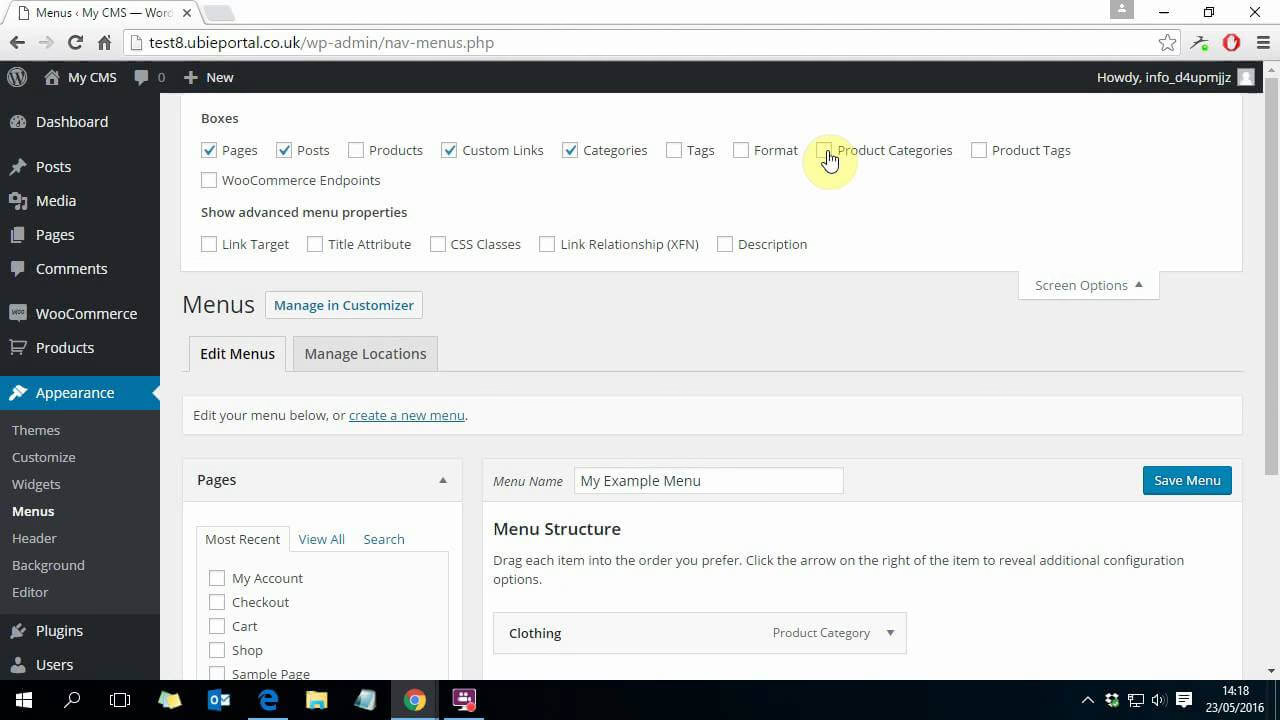
- Open Screen Options at the top of the screen.
- Enable Product categories.
- Open the Product categories panel, select the categories you need and choose Add to Menu.
- Arrange the links, save the menu and check the correct menu location is selected.
For block themes and page builders
A block theme manages navigation through Appearance → Editor. Edit the Navigation block and add the relevant Product Category Link. A builder such as Bricks may use a WordPress menu or its own navigation elements, so identify which one powers your header before changing anything.
If the categories still do not appear
Check that WooCommerce is active and that the categories exist under Products → Categories. Confirm you are editing the menu used on the public site, rather than a similarly named unused menu. After saving, check desktop and mobile navigation and clear the relevant page cache if you still see an old version.
You should not need an extra menu plugin simply to add a few existing category links. See WooCommerce’s category and menu documentation for the editor-specific steps.